Monitor
The Monitor page is your control center for managing scan roots, scheduling automatic scans, and viewing the scan queue.
Managing Scan Roots
Adding a Root
- Click Add Root
- Enter the full filesystem path to monitor
- Optionally provide a friendly name
- Save
Managing Roots
- Scan Now: Trigger an immediate one-time scan
- Delete: Remove the root (also removes associated schedules and queue entries)
- View root statistics and last scan time
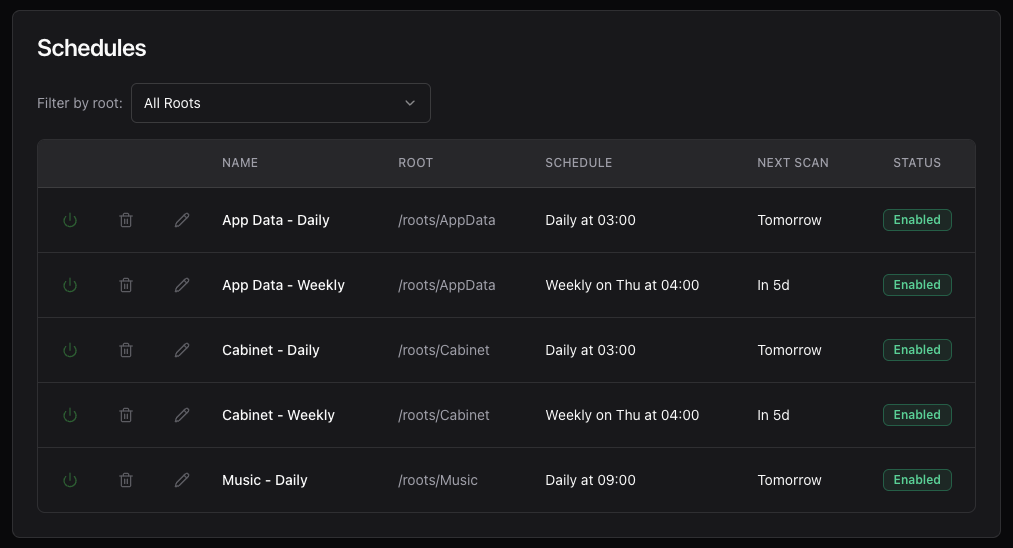
Scheduling Automatic Scans
FsPulse supports flexible scheduling options for automated monitoring:
Schedule Types
- Daily: Run at a specific time each day
- Weekly: Run on specific days of the week at a chosen time
- Monthly: Run on a specific day of the month
- Interval: Run every N hours/minutes
Creating a Schedule
- Click Add Schedule
- Select the root to scan
- Choose schedule type and timing
- Configure scan options:
- Enable hashing (default: all files)
- Enable validation (default: new/changed files)
- Save
Schedule Management
- Enable/Disable: Temporarily pause schedules without deleting them
- Edit: Modify timing or scan options
- Delete: Remove the schedule
Scan Queue
The queue shows:
- Pending scheduled scans waiting to execute
- Currently running scans
- Recent scan history
Scans are queued and executed sequentially to prevent resource conflicts.
Configuration
Scheduling and queue behavior can be customized via Configuration.